

Media Pool GenAI V2.0
Built on Google Gemini 3 and customized exclusively for Bayer, Media Pool GenAI V2.0 is bringing a major leap in realism, flexibility, and speed to internal creative workflows. It significantly elevates image quality compared to version 1 and streamlines production across the Media Pool ecosystem.
At the core of V2.0 is a substantial upgrade in visual fidelity. The tool now supports reference images up to 50 MB and offers output selections ranging from 1K to 4K, enabling crisp detail and lifelike textures across a wide range of creative needs. With multi image generation, users can produce up to 3 variations at once, accelerating exploration and selection without sacrificing quality.
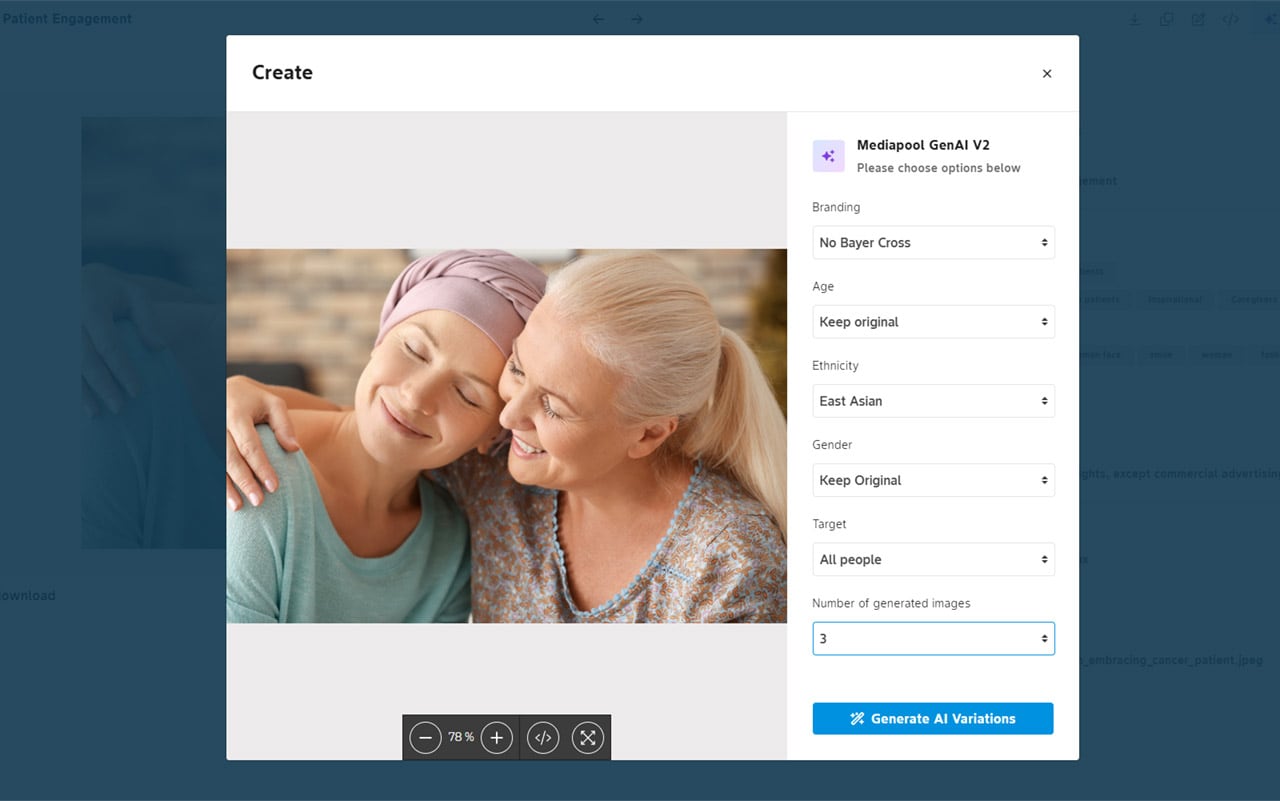
V2.0 also introduces flexible casting controls that let users change all people in a scene. Character attributes—including ethnicity, age, and gender—can be adjusted with guided refinements to achieve the desired look while maintaining natural composition and realism.
Brand ready features are woven directly into the experience. Teams can naturally integrate the Bayer Cross on identified items—such as cups, shirts, and posters—where appropriate, helping ensure assets are instantly usable in branded contexts. A powerful refinement tool provides smart ways to tweak lighting, composition, and details. Media Pool GenAI V2.0 is designed to make image generation effortless. Users don’t need to start from scratch: simply select any image or asset already in Media Pool and make targeted changes. Reference images available in Media Pool are license free, enabling compliant, frictionless creation within established workflows.
We have also developed a page of Use Cases for do’s and don’ts.
Media Pool GenAI V2.0 is available for Bayer’s internal use via Media Pool. For onboarding and best practice guidance, please contact Corporate Branding.
User Guide
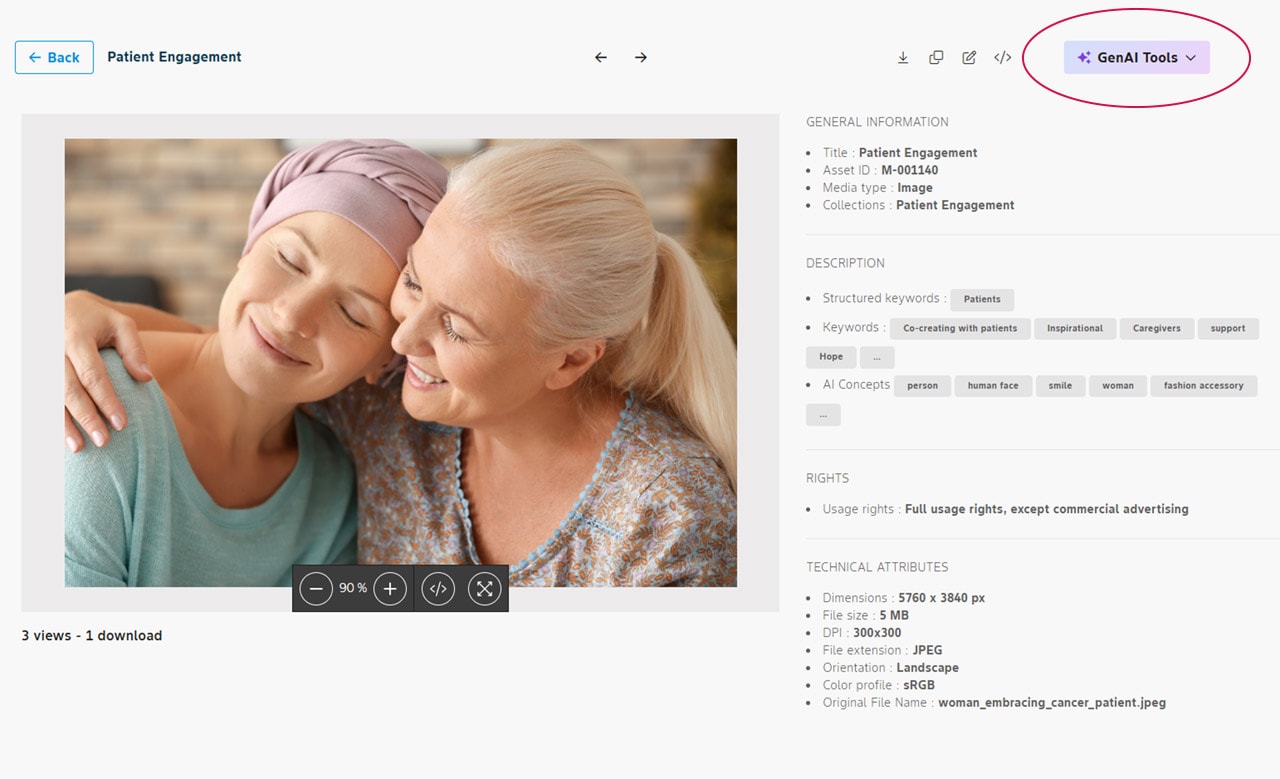
Step 1: On the Asset page, click the Mediapool AI button in the upper-right corner. Then select the desired age, ethnicity, and gender. If you want to include the Bayer Cross in the image, make sure to choose the correct version of the logo. You can also specify how many images you want to generate at one time.
Step 2: Download all newly generated images as a ZIP file, or select the best image and download it individually.

Step 3: If you are not fully satisfied with the result, you can refine or calibrate the generated image by modifying parts of it or adding details in the prompt area.
(e.g. change the blue shirt to Bayer Fuchsia)

If you have any further questions about this or any other section of Bayer Identity Net, please contact: